
How To: Change Target Phases and View Skill Graphs
Each Target of a Skill has its own phase and its own Phase History. Phases can be changed manually at any time from the Skill's Details page.
The details page displays the Skill's progress, its Tracking Method and Measure Type, and the list of Targets with each target's current phase and last 3 measurements.

To change a Target phase:
- Navigate to the client's main screen.
- Select the Skills & Behaviors tab.
- Click on the Skill.
- Click the arrow next to the Target to open its Phase History.
- Click Add Phase.
- On the Add Phase Line popup, select the Phase Line and the Date & Time it starts.
- Click Save.

Phase changes are logged in the Phase History section. The Source column displays whether each phase change was Manual, Auto Progression, or Task Analysis.

To change the phase of several Targets at once:
- Navigate to the Skill's details page.
- Click Phase Lines.
- The Phase Lines popup displays the phase history of each Target.
-
Check "Select All" or select the desired Targets.
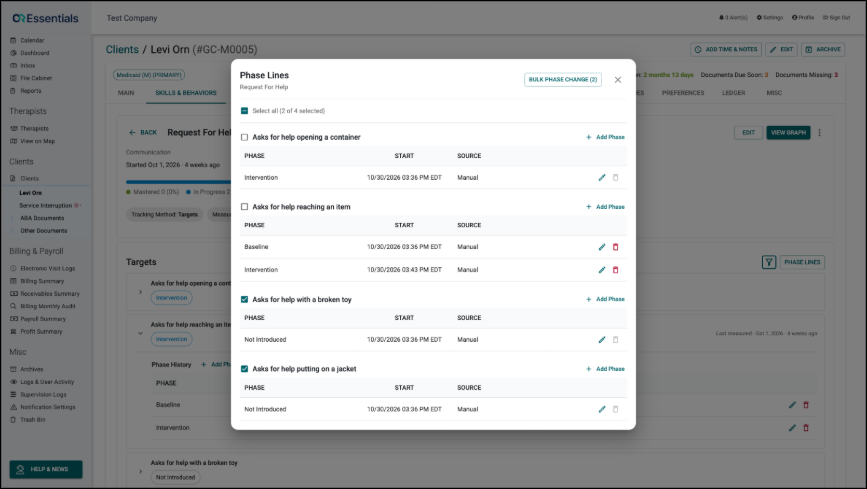
- Click Bulk Phase Change.
- Review the selected Targets and current phases.
- Select the New Phase and the Date & Time.
- Click Apply Phase Change.

Session Notes and Phase Changes
Session Notes display a data collection block for each target based on the Target's phase on the date of the visit. A Target that already has data on a note stays on that note, even if its phase changes later.
Viewing Graphs
Click "View Graph" on the Skill's details page and adjust the period as needed.
The first graph is an overview of every target with the % of Targets Completed. Use the Display buttons below to show or hide a target.

Below the overview, each target has its own graph, with a dashed line marking each phase change. Use the "Phase changes" button to show or hide the phase lines.

Monthly Reports
Each Skill's section in the monthly report lists its Targets and its phases during the month, followed by its graphs. Use the "Graph" dropdown to select which Skill and Target graphs are shown. The selection is saved in monthly reports and included in exports.
