
How To: Assign a Skill with Targets to a Client
Skills can be tracked by individual Targets, each with its own phase, as an alternative to Short Term Objectives (STOs).

To assign a Skill with Targets:
- Navigate to a client's main screen.
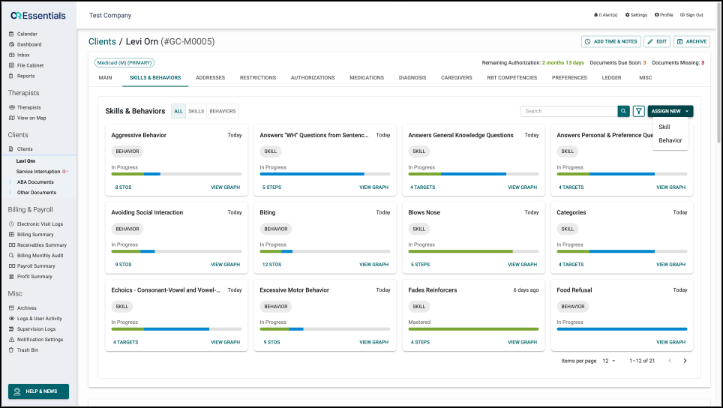
- Select the Skills & Behaviors tab.
- Click on the Assign New button.
-
Select Skill.
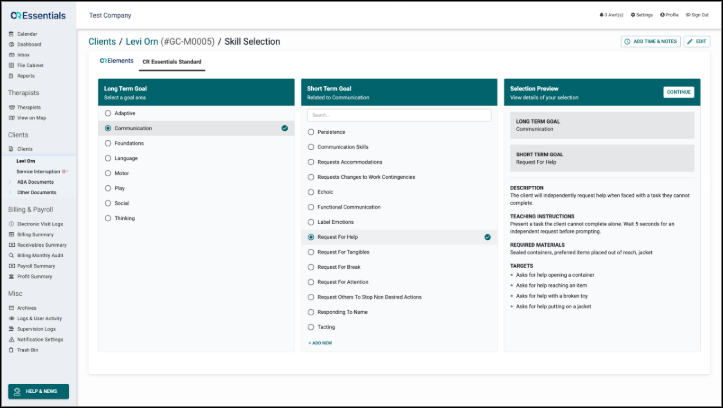
- Select the CR Essentials Standard tab.
- Select a Long-Term Goal and a Short-Term Goal.
-
The Selection Preview will display the Short-Term Goal's details and Targets.
-
- Click Continue.
- In the Create Skill page, update the Display Name, Description, Teaching Instructions and Required Materials fields as needed.
-
In the Tracking Method section, select Targets.
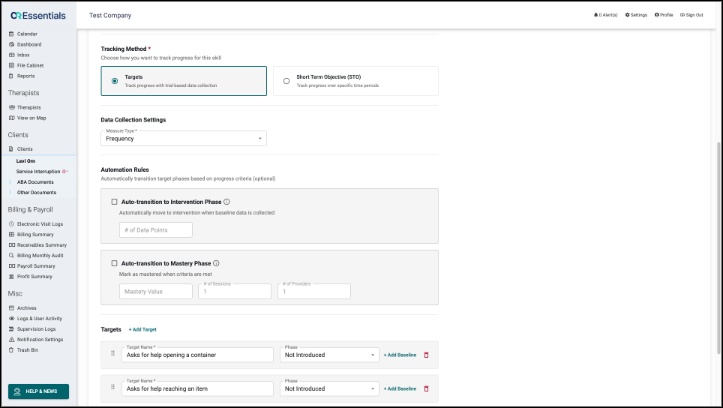
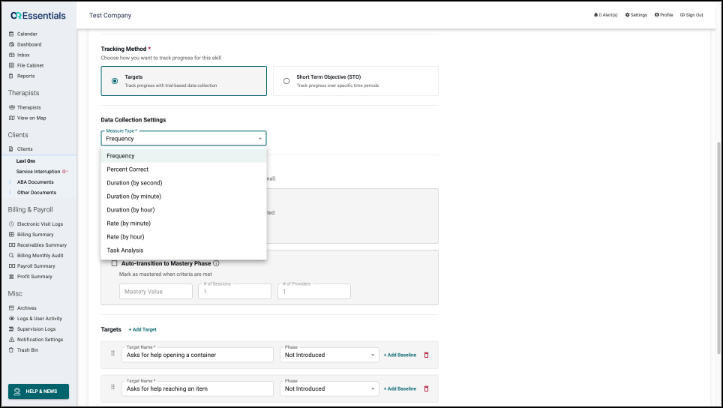
- In the Data Collection Settings section, select a Measure Type:
- Frequency
- Percent Correct
- Duration
- Rate
-
Task Analysis
- The Targets section lists the Targets copied from the Skill Library. For each Target, users can:
- Rename the Target
- Select its starting Phase:
- Not Introduced
- Baseline
- Intervention
- Mastered
- Maintenance
- Click + Add Baseline to add as many dated baselines as needed
- Drag to change the order
- Remove the Target
-
Click + Add Target to add a Target that is not in the Skill Library.
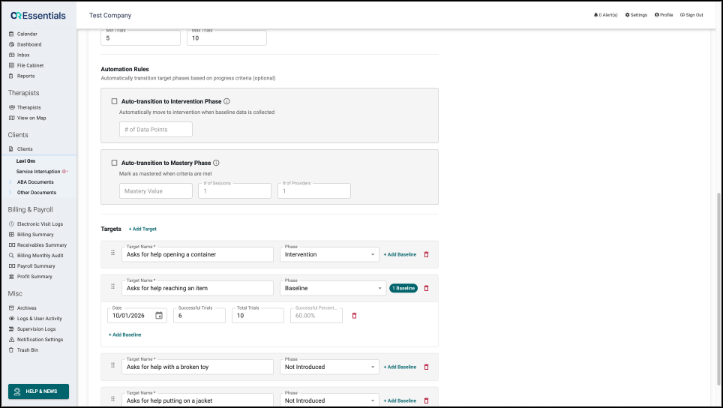
- Set up the optional Automation Rules if desired.
- Scroll up and click Save.
- Once the skill is saved, it appears in Session Notes from its start date onward.
Once a Skill is saved, its Measure Type and the phases of its saved Targets can no longer be edited. New Targets can still be added when editing.
Please note, deleting a Target permanently removes all collected data. This action cannot be undone. The last remaining Target of a Skill cannot be deleted.