
How to Bill through Optum Connect Center or Availity / Como facturar a través de Change Healthcare o Availity
In order for your practice to bill through CR Essentials and its integration with Optum Connect Center or Availity, a billing setup process is needed.
You can review each process here:
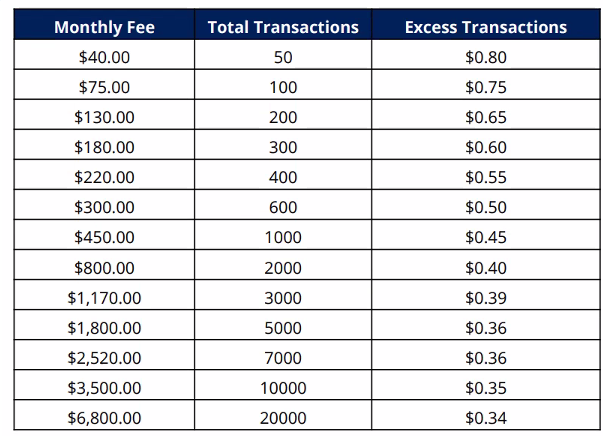
Tier pricing per claims volume:
Once that billing setup process has been completed, make sure the payer is connected to the clearinghouse you choose in Settings>Financial Settings>Payers>Clearinghouse Connection

Completed visits for payers connected to a clearinghouse will have a checkbox in the very first column in the billing summary.

If you select visits by clicking in the checkboxes, a button to create receivables will be enabled above.

Once the "create receivables" button is pressed, the status of those visits will change from "Visit Completed" to "Added to Claim Group". Beside the visit tab, you will find the claims tab. In that tab, you'll find all created claims. Recently created claims will show up as drafts.

As a draft, you can click the edit claim button, which will open a pop-up window that will let you see the service line(s) and if you click the "CMS 1500 Form" tab you will be able to see and download the form. You can edit what is in this form by editing the fields where information is pulled from in the system (company settings, client's profile, therapist's profile, payer screen, etc.).

If you exit that pop-up window, you are able to send those claims to the clearinghouse by clicking the three dots and then the "send" option.

Once sent, you will see a "queued for validation against clearinghouse" status which means the claim is being checked. After the validation is done, it will either be "successfully send to clearinghouse" or it will have "error(s) while sending to the clearinghouse. If it has errors, you are able to see the error codes by clicking on the number of issues in the error column.

We've compiled a list of errors and the way to fix them here: Claim Errors
If you happen to encounter an error not listed in the article, don't hesitate to get in touch with our support team at support.essentials@centralreach.com who will then contact Optum to find out what the error is, the way to fix it, and add it to the claim errors article for future reference.
Once errors are fixed, click send again so it is sent successfully. Once sent, you should be able to see remits in the remits tab and also post a payment in the receives summary where you can write off pending amounts when needed.
If you enter something in the client responsibility field, this would then appear under the invoices tab as a billing item.


In the billing items, you will see that the default status is "Not attached".

You are able to select items and then click on the "Create Invoices" button on the top right corner of that table to create an invoice draft.

Once the invoice draft has been created, the billing items status will then change to "invoiced" and the invoice created would be shown above, in the invoices section.

Once that invoice draft is created, you can download it as a pdf, send it to the caregiver portal, edit it or delete it. If you click on edit you will see the billing items and the total. You are able to add customized billing items here, select the terms (Net Due, Net 15, Net 30, Net 45), and also include a message in your invoice before you send it.

Whatever payer pays, you should be able to see it in your remits tab, and that should also appear in the receivables summary tab. Whatever the client pays, you should also be able to see it there.