
How To: Assign a Behavior Goal to a Client
Behaviors can be tracked as a Behavior Goal, which follows the behavior through phases instead of STOs.
To assign a Behavior Goal:
- Navigate to the client's main screen.
- Select the Skills & Behaviors tab.
- Click on the Assign New button.
- Select Behavior.
- In the Create Behavior popup, select the behavior for the client.
-
Click + Add New to add a behavior not on the list.
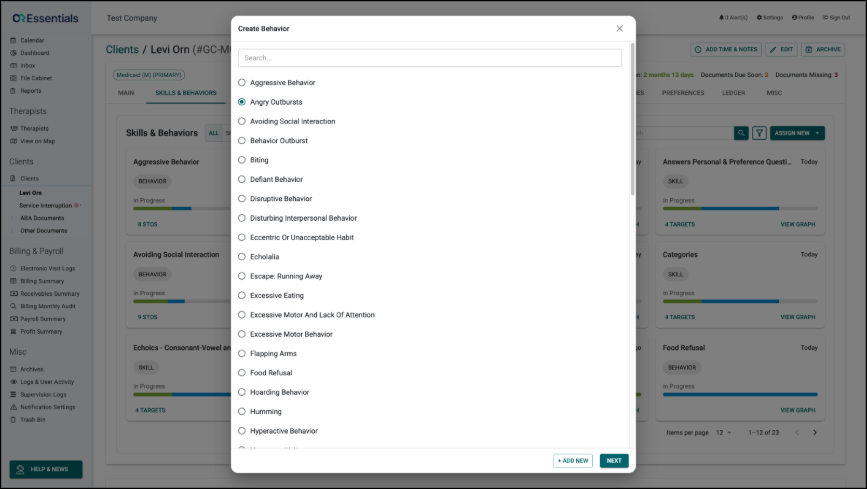
-
- Click "Next".
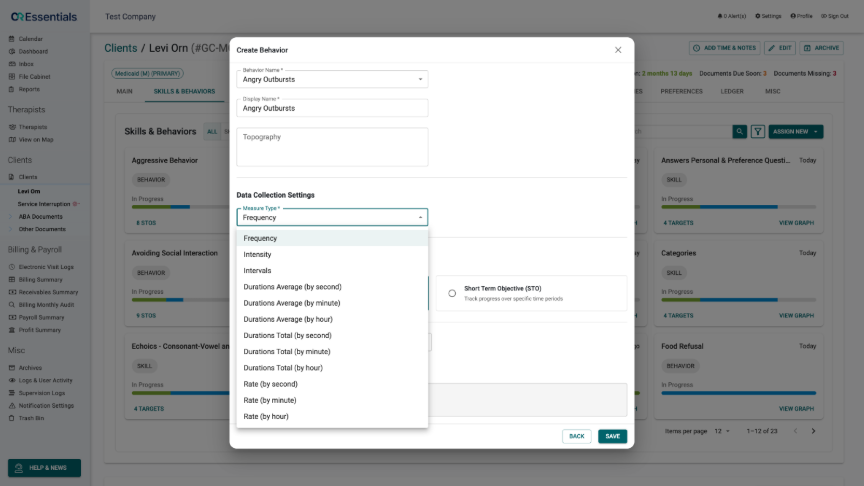
- Update the Display Name if needed and enter the Topography described in the assessment.
- In the Data Collection Settings section, select a Measure Type:
- Frequency
- Intensity
- Intervals
- Durations Average
- Durations Total
-
Rate
- In the Tracking Method section, select Behavior Goal.
- Select the starting Phase.
-
In Baseline(s), click + Add Baseline to add dated baselines, if needed.
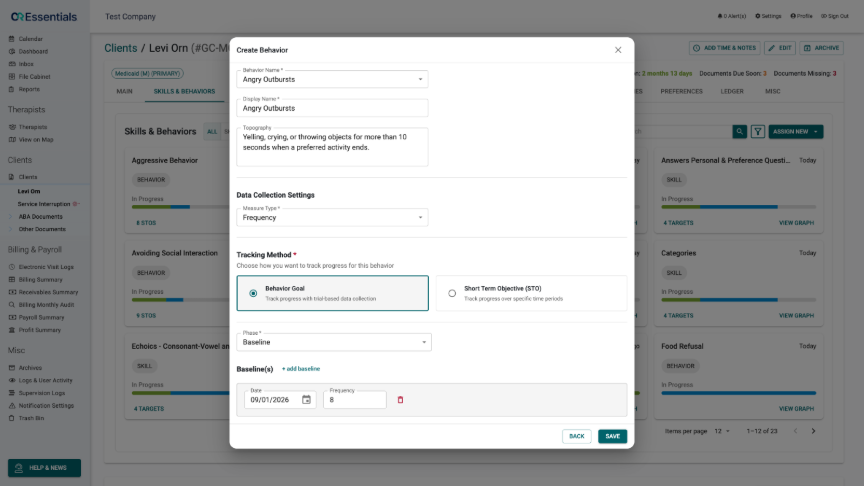
- Click "Save".
Once a Behavior Goal is saved, its Measure Type and starting phase can no longer be changed. Later phase changes are made from the behavior's Phase History.
Please note that phase changes for Behavior Goals are always made manually. Task Analysis and Automation Rules are available only for Skills with Targets.