
How to resubmit claims
If a claim has already been submitted and is in Sent to Clearinghouse status, the claim must first be reverted by the CR Essentials Billing team before you can make changes or resubmit it. To complete this you can contact us via chat or email.
Once the claim has been reverted, you have two options:
Option 1: Submit as a Replacement/Adjustment
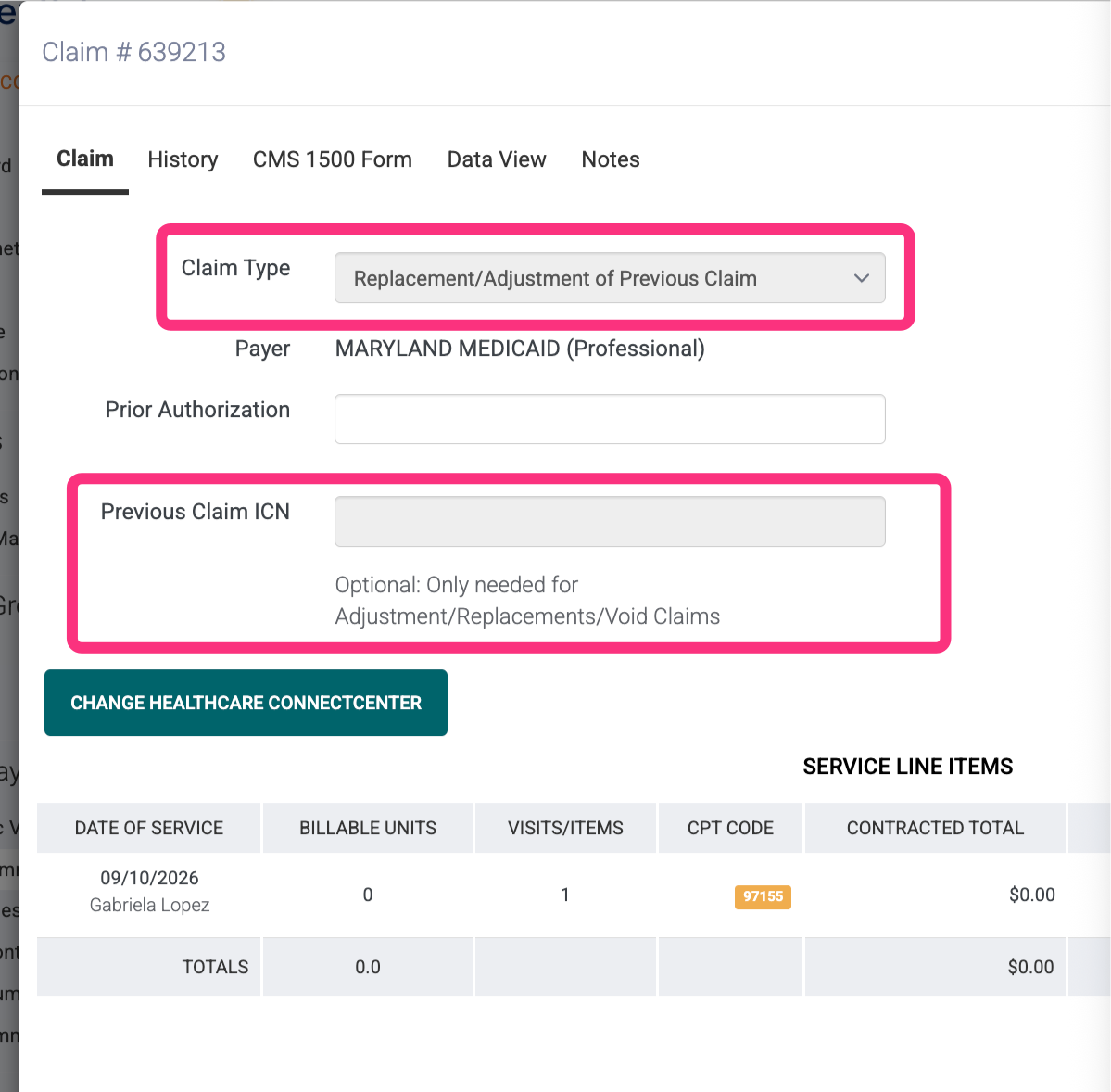
- Find the claim in CR Essentials and click on the Claim ID.
- Under Claim Type, click the drop-down menu.
- Select Replacement/Adjustment of previous claim.
- Enter the original claim ID in the Previous Claim ICN field.
- Review the claim details and submit the claim. Find the claim, click on the 3 dots (⋮), then delete.
Option 2: Delete and Create a New Claim
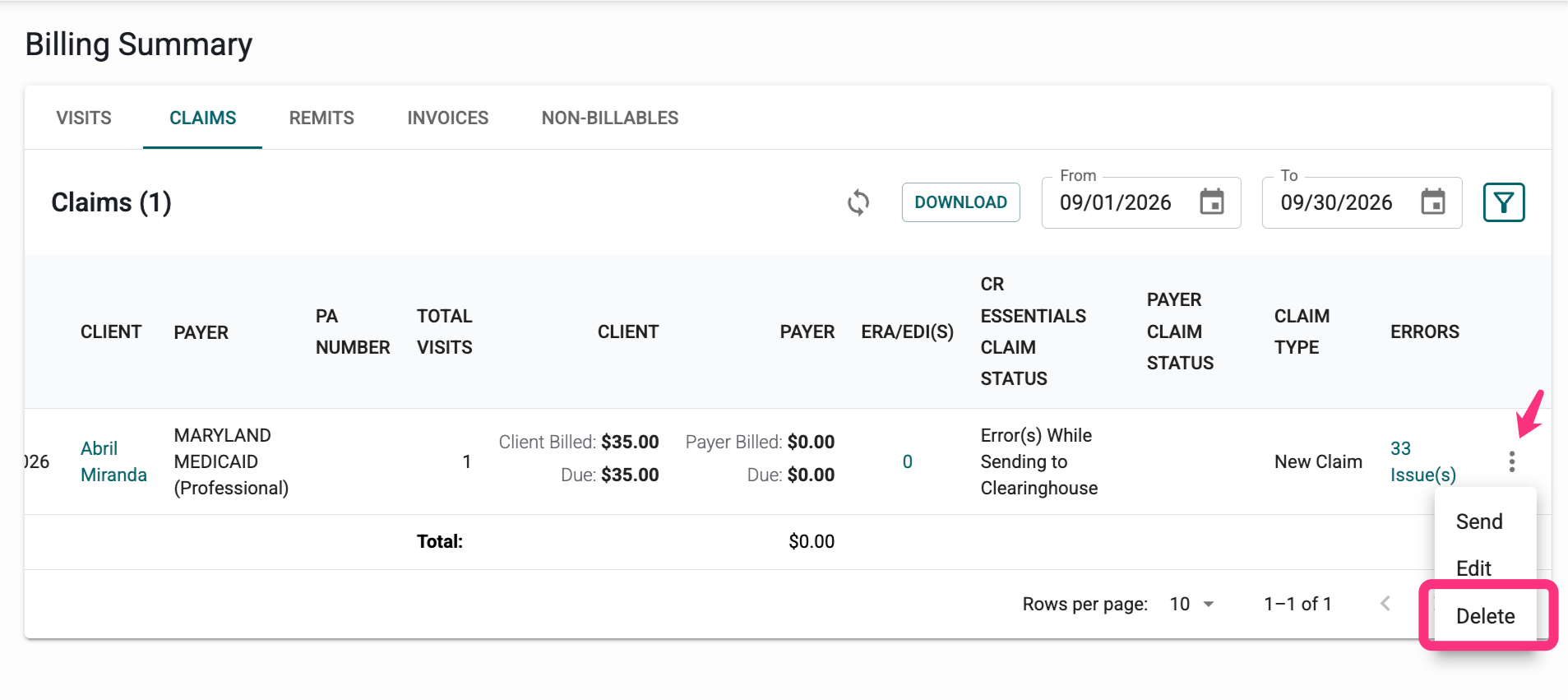
- Go to Billing Summary > Claims tab
- Find the claim, click on the 3 dots (⋮), then delete.
- Go to Billing Summary > Visits tab and create a new claim and send.
If you do not want to submit the claim as a replacement, you can delete the reverted claim and create a new claim for the same service.
The insurance payer will receive the new claim as a new submission and process the latest claim received.
Important: If the claim is currently in Sent to Clearinghouse status, it will not allow you to delete or modify it directly. Contact CR Essentials Support by chat or email and provide the Claim ID(s) that need to be reverted. Our Billing team will complete the reversion so you can proceed with either option.