
Data Collection and Session Notes in CR Essentials Mobile
To begin a visit, tap Start. Once a visit has begun, users can collect data and create session notes for the appointment.
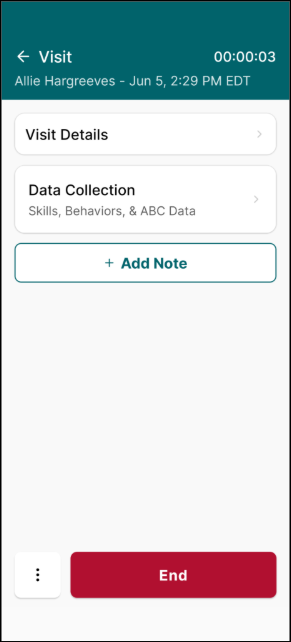
Data collection within CR Essentials Mobile includes Behaviors, Skills and ABC data. Each category, skill, and behavior is expandable and collapsable for efficient readability and usability.
Data Collection
Skills & Behaviors
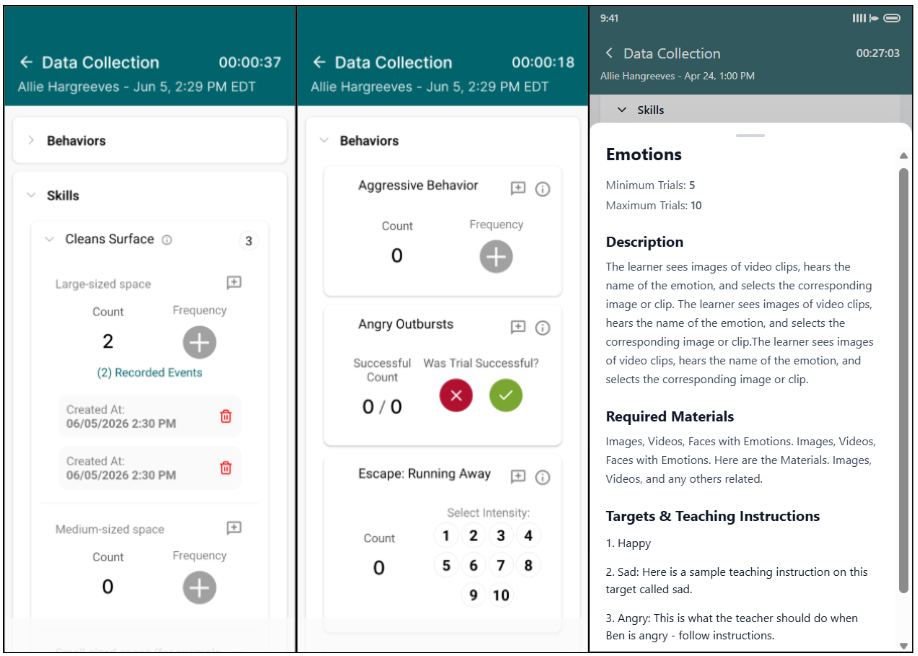
- Each skill is expandable and collapsable for quick navigation and easy readability.
- To collect data, tap the icon(s) on the right-hand side.
- To view the count for a skill or behavior, view the number on the left-hand side.
- To view detailed information for a skill or behavior, tap the ⓘ icon.
- To view the time and date logged for past events within the appointment, tap Recorded Events.
- To add a note, tap the speech bubble icon.
- To delete a recorded event, tap the trashcan icon.
ABC Data
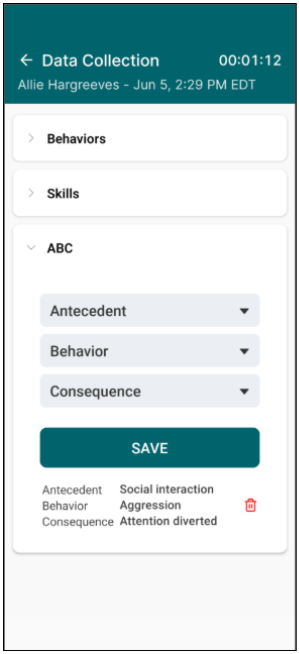
- To record Antecedents, Behaviors, and Consequences, tap the ▼ icon beside the desired value type and select from the dropdown.
- To delete recorded data, tap the trashcan icon.
Session Notes
When adding a note, users can either select a standard Session Note or Custom Note configured by your organization.
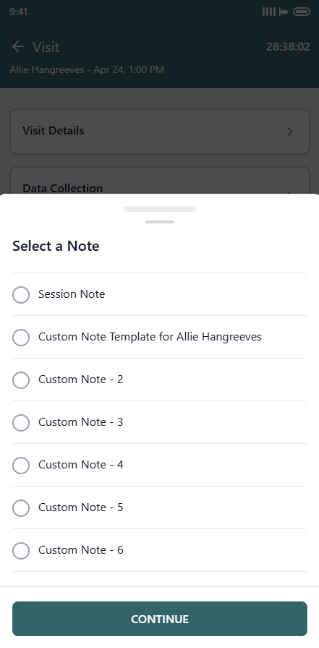
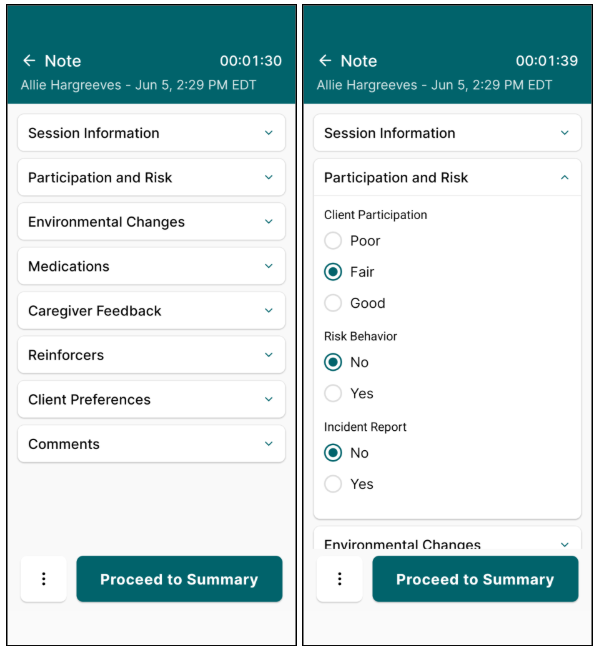
In Standard Session notes, each section is expandable and collapsable, enabling users to easily navigate between different sections and focus on each section as they continue through the note. In Custom Session notes, all fields will be displayed for documentation.
Once complete, tap "Proceed to Summary".
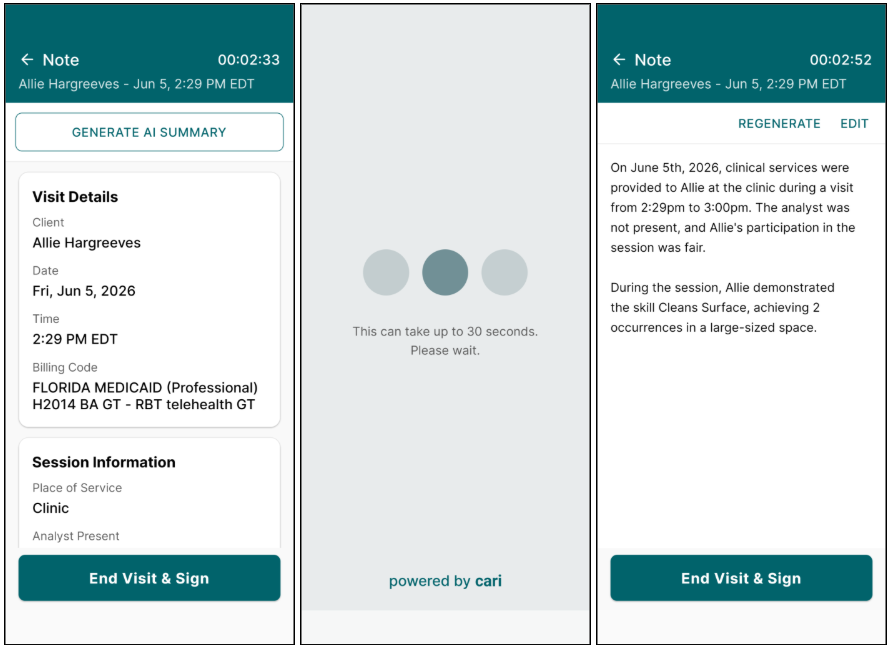
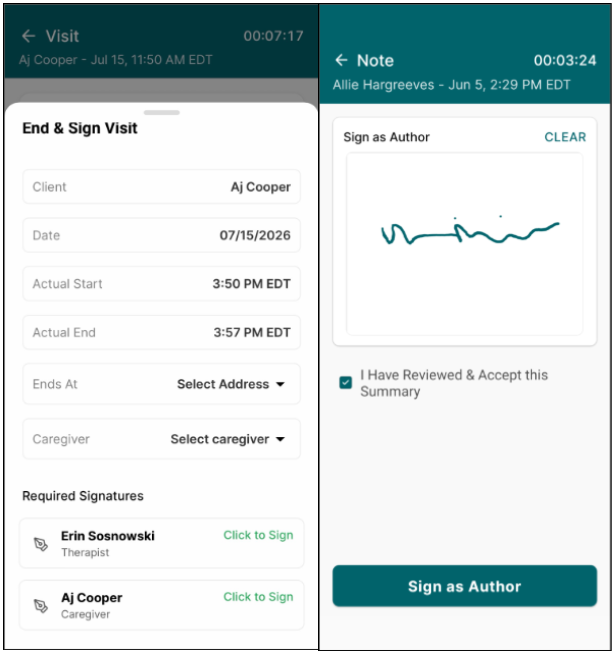
Users can tap the “Generate AI Summary tool before ending the visit to easily assemble essential information from the visit’s data collection and session notes. Users can regenerate or edit the AI summary as needed. Once the summary is complete, the user must select the checkbox that the summary has been reviewed and accepted. Users can then sign the note as the author.
After the summary is reviewed, tap "End Visit & Sign". Visits must be ended before the note can be signed, either by clicking the End button on the Visit page, or the “End Visit & Sign” button on the note summary. Visits can also be signed from the main Visit screen.
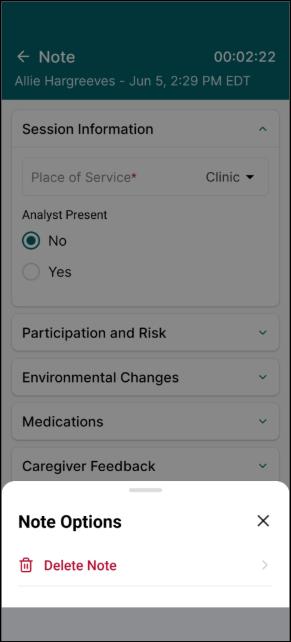
To delete a note, tap the ellipses at the bottom of the screen and tap "Delete note."
For Group Visits, please note the following:
- Group Visits only support the Standard Session Note; Custom Session Notes are not currently available for Group Visits.
- The Session Note signature is applied to all Session Notes, and the Visit allows the user to collect signatures for each client’s caregiver.
- The AI Summary feature is not available for Group Visits.