
Mobile Redesign & Session Notes
Release Recap
The Essentials Mobile App release contains a significant redesign to the Essentials mobile application that promotes a more comprehensive, visit-centered workflow. This update includes the ability to write session notes, draft an AI visit summary, and capture visit signatures.
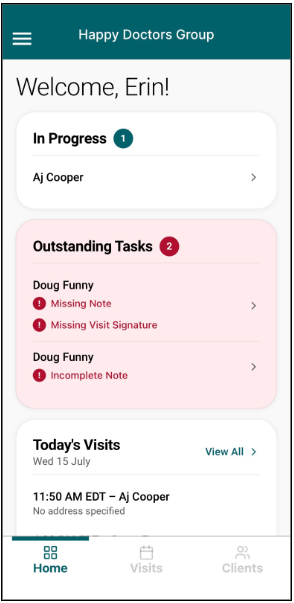
Home Tab
The Home tab has been enhanced to improve visibility into credential expirations, upcoming visits, and outstanding tasks needing attention.
- The “Certification & Requirements” section contains a color-coded count of Valid, Expiring, and Expired certifications.
- Users can click the modal to view a list of certifications and expiration dates.
- The “In Progress” section lists any visits that are currently in-progress with an active timer running.
- The “Outstanding Tasks” section tracks completed visits that still require additional work to resolve Incomplete Notes or Missing Visit Signatures.
- The “Today’s Visits” section lists each upcoming appointment time, client, and address.
- The bottom of the screen displays the number of clients and groups for the day.
Visits Tab
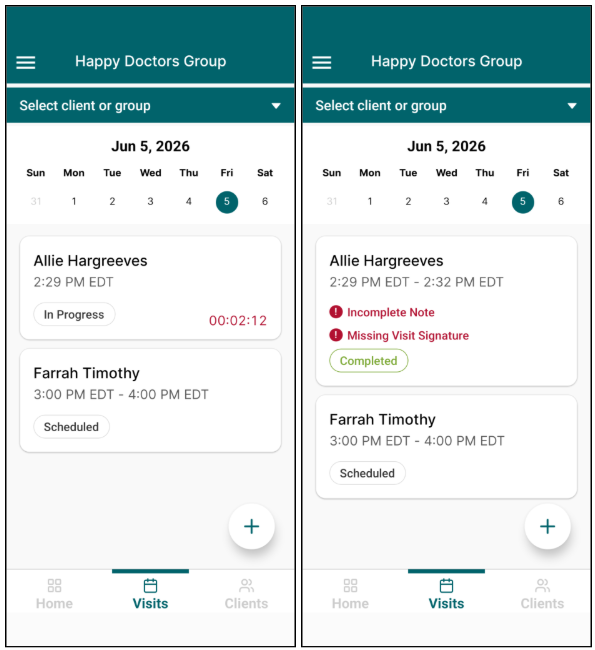
The Visits tab displays the therapist’s calendar of visits, including scheduled, in progress, completed, and cancelled visits within the day. Users can easily switch to previous or future days by week, as well as filter by client or group.
- Each visit displays a status indicator and an alert if there are missing components, such as an incomplete note or missing signature.
- If a visit is in progress while viewing the Visits module, the current visit will display a running timer.
- To schedule and configure new visits and non-billable events, users can click the plus icon.
- The dropdown for Clients and Groups enables users to filter the calendar based on their available clients and groups.
- Clicking on a Visit will load the visit and allow users to start the Visit workflow.
Visit Workflow
- The visit workflow has been expanded to support the user throughout the entirety of each visit.
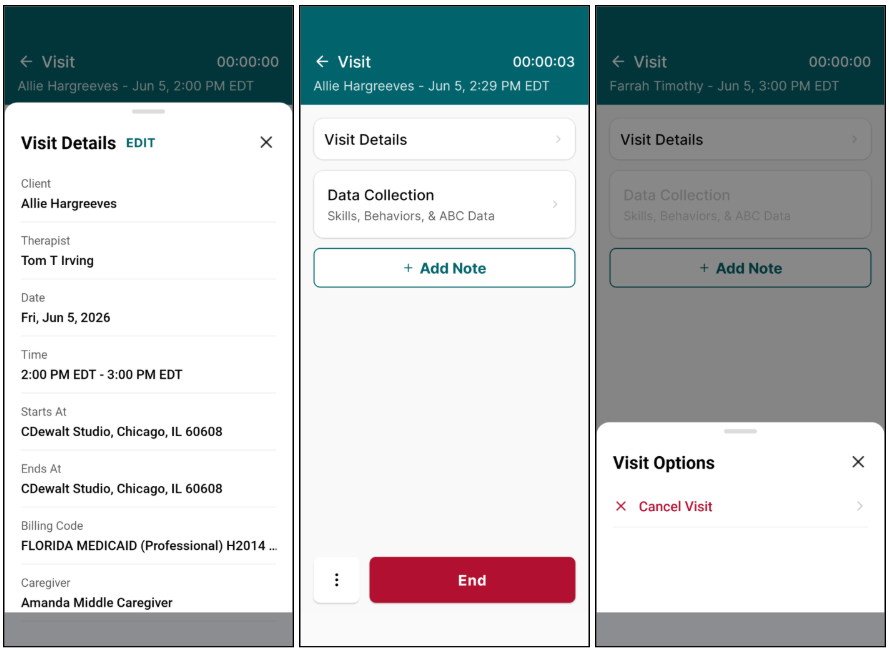
- The Visit screen provides access to the Visit Details, Data Collection, and Session Notes, as well as the ability to start, end, and sign the visit.
- Visit Details allows users to quickly update information about the visit, including:
- Client or Group
- Therapist
- Caregiver(s)
- Date
- Start/End Time
- Start/End Place of Service
- Billing Code(s)
- When users click Start to begin a visit, the visit timer displays and Data Collection becomes accessible.
- Visits can be cancelled by selecting the ellipses in the bottom left corner of the visit main screen.
- Once a visit has been started, it can no longer be cancelled.
Data Collection
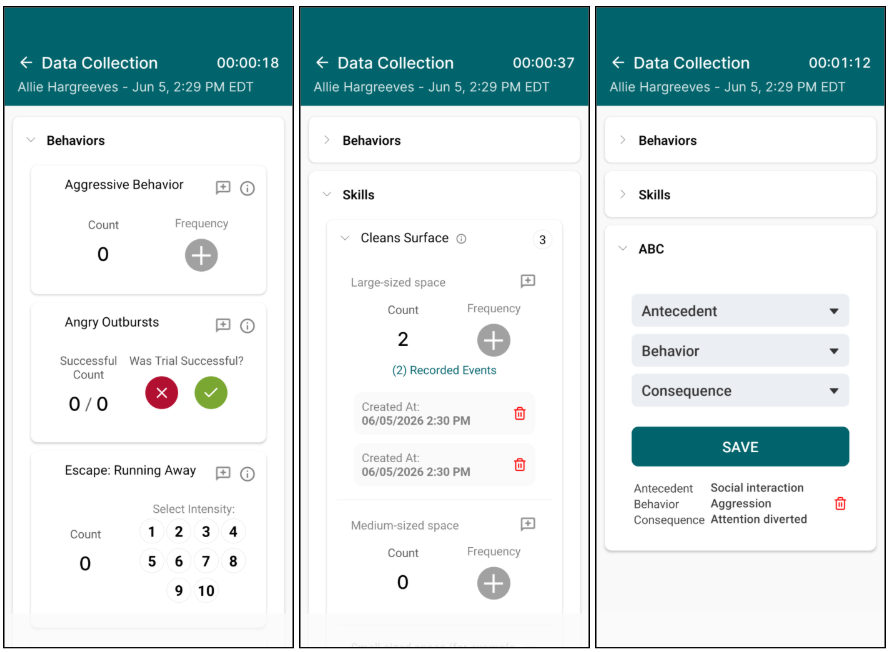
- Data Collection has been redesigned but retains all pre-existing functionality for data collection across Skills, Behaviors, and ABC Data.
Session Notes
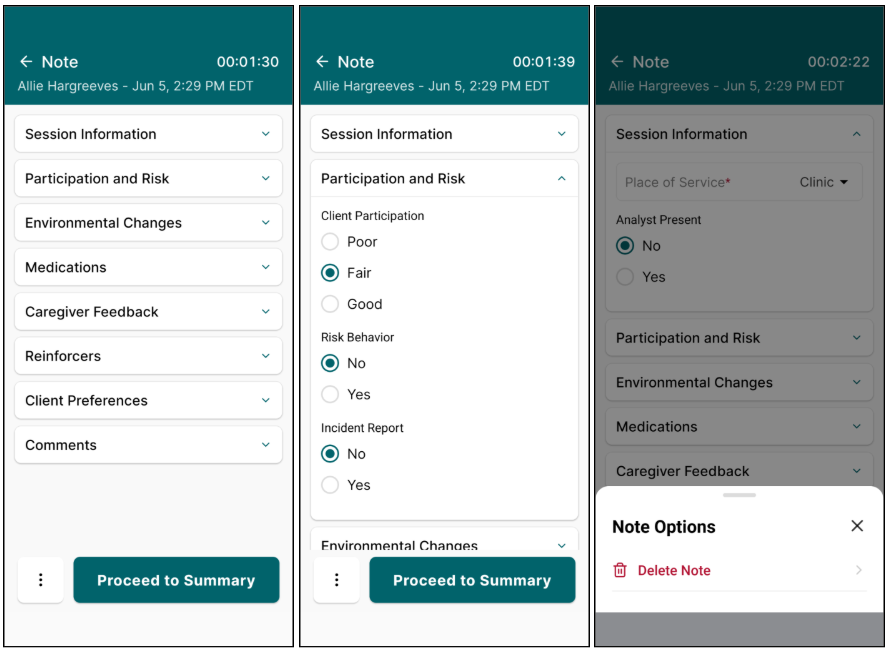
- Session Notes can now be created, edited, signed, and completed in the mobile application.
- At any point in the visit workflow, users can add a Note to the visit.
- When users click Add Note, they can select the Standard Session Note for RBTs and any other Custom Session Notes available in the web.
- Session notes can be deleted through the ellipsis at the bottom left corner.
- Session note fields are available for capture, except smart fields and the drawing pad, which will be available in the saved web view.
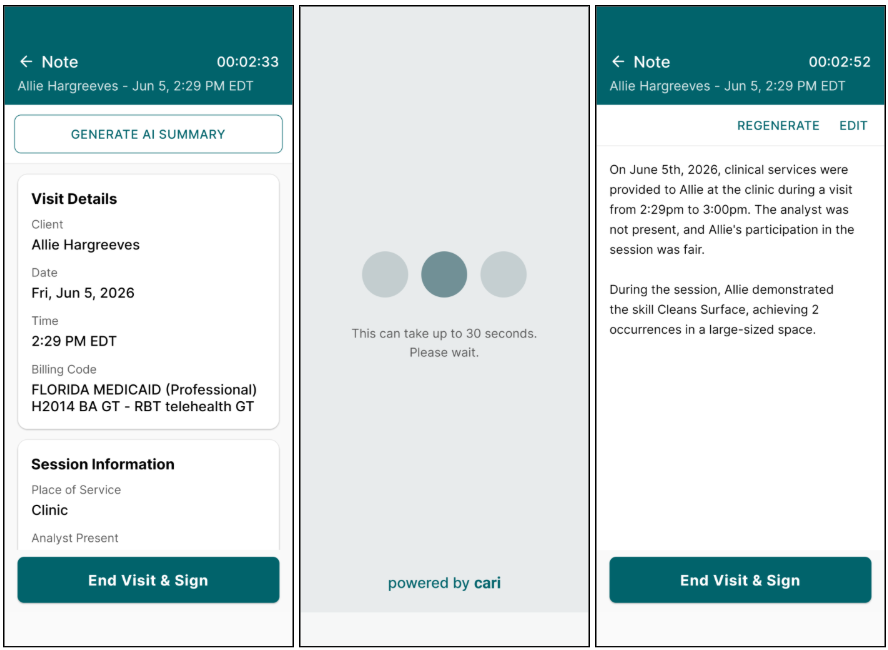
- Once the notes are collected and “Proceed to Summary” is selected, note fields will display for review.
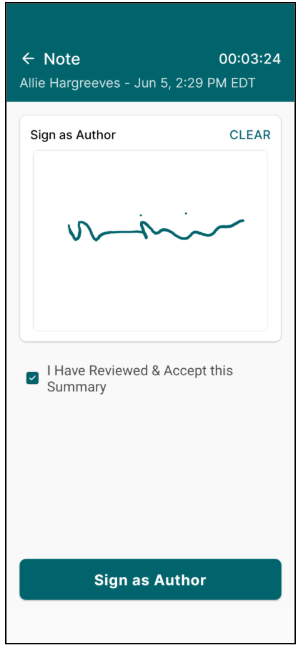
- From the summary screen, users can now generate an AI summary to easily assemble essential information from the visit’s data collection and session notes. Users can regenerate or edit the AI summary as needed. Once the summary is complete, the user must select the checkbox that the summary has been reviewed and accepted. Users can then sign the note as the author.
- Visits must be ended before the note can be signed, either by clicking the End button on the Visit page, or the “End Visit & Sign” button on the note summary.
Visit Signing
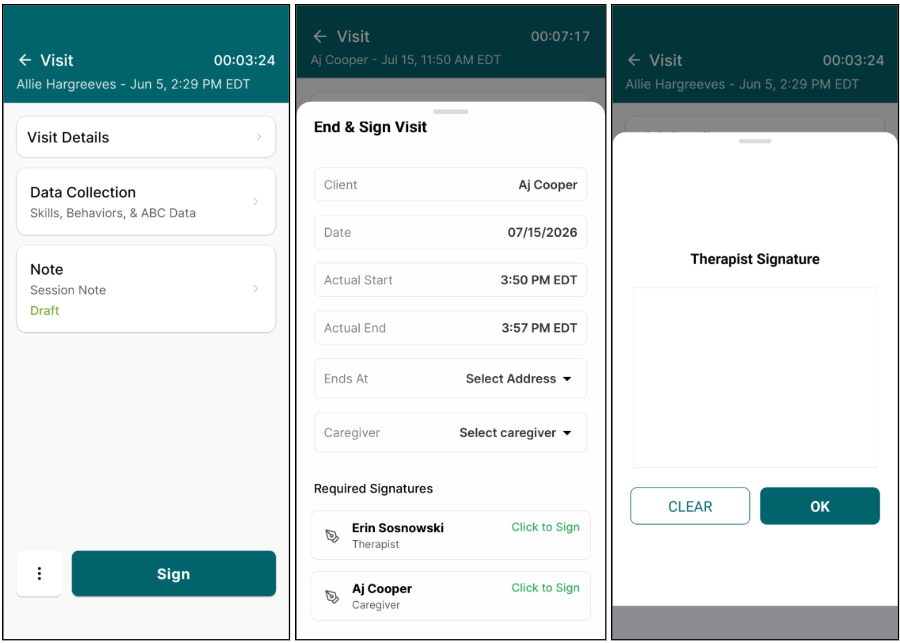
- To complete the visit, users must click End on the Visit page or select “End Visit & Sign” on the Note Summary page.
- After ending the visit, the therapist and caregiver signatures can be captured in the mobile app.
Group Visits
- Group Visits can be scheduled and completed in the updated mobile app, including writing session notes for each client in a group visit and collecting signatures for the notes and visit.
- When scheduling visits, users can select Group Visit and select the group for the visit. Users can select specific billing codes for each client in the group.
- Data Collection enables users to switch between clients to quickly collect data for each client.
- Group Visits only support the Standard Session Note; Custom Session Notes are not currently available for Group Visits.
- The AI Summary feature is not available for Group Visits.
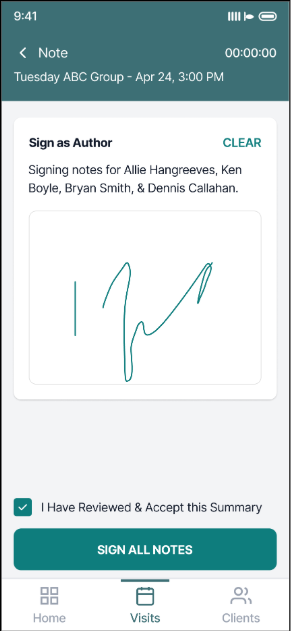
- The Session Note signature is applied to all Session Notes, and the Visit allows the user to collect signatures for each client’s caregiver.
Clients Tab
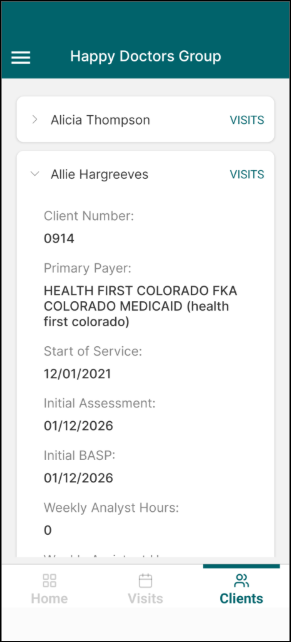
- The Clients tab has been refreshed with an improved look and feel. Users can click on a client for an overview of the client’s essential information, including client number, payor and service details, number of documents due or missing, and guardian information.
- To directly navigate to the client’s schedule, users can click on “Visits” next to the client’s name.
Offline Mode
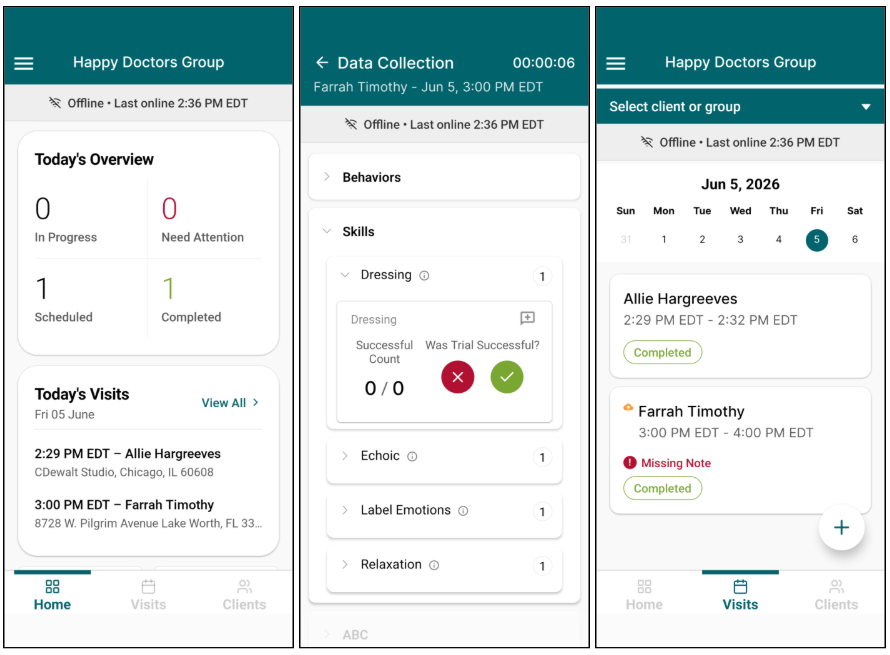
- Visits can be fully completed in Offline Mode when users do not have internet connection. When users are offline, an indicator bar will display Offline Mode and provide the last date the app was synced.
- Users can start scheduled visits, complete Data Collection, end visits, and collect signatures.
- All data is saved within the mobile app and syncs back to the web when an internet connection is restored.
- Offline Mode does not support the following:
- Creating or signing Notes
- AI Summary generation
- Scheduling or canceling Visits
- The Visits page will only display visits that were available the last time the mobile app had an internet connection and was able to sync.
- Visits will appear with a “pending upload” indicator when in Offline Mode waiting for an internet connection to allow syncing.
Accessing Mobile Notes in Web
- When a Note is started in the Mobile app, changes will be displayed in the Web view for that note.
- Any data collection changes made in the Mobile visit will be displayed in the Web view.
