How to use Receivables Summary
The Receivables Summary provides a complete view of all invoices and insurance claims that have been billed and are awaiting payment or reconciliation.
This helps users monitor outstanding balances, verify payer payments, and track the status of both client and insurance receivables in one place.
Invoices
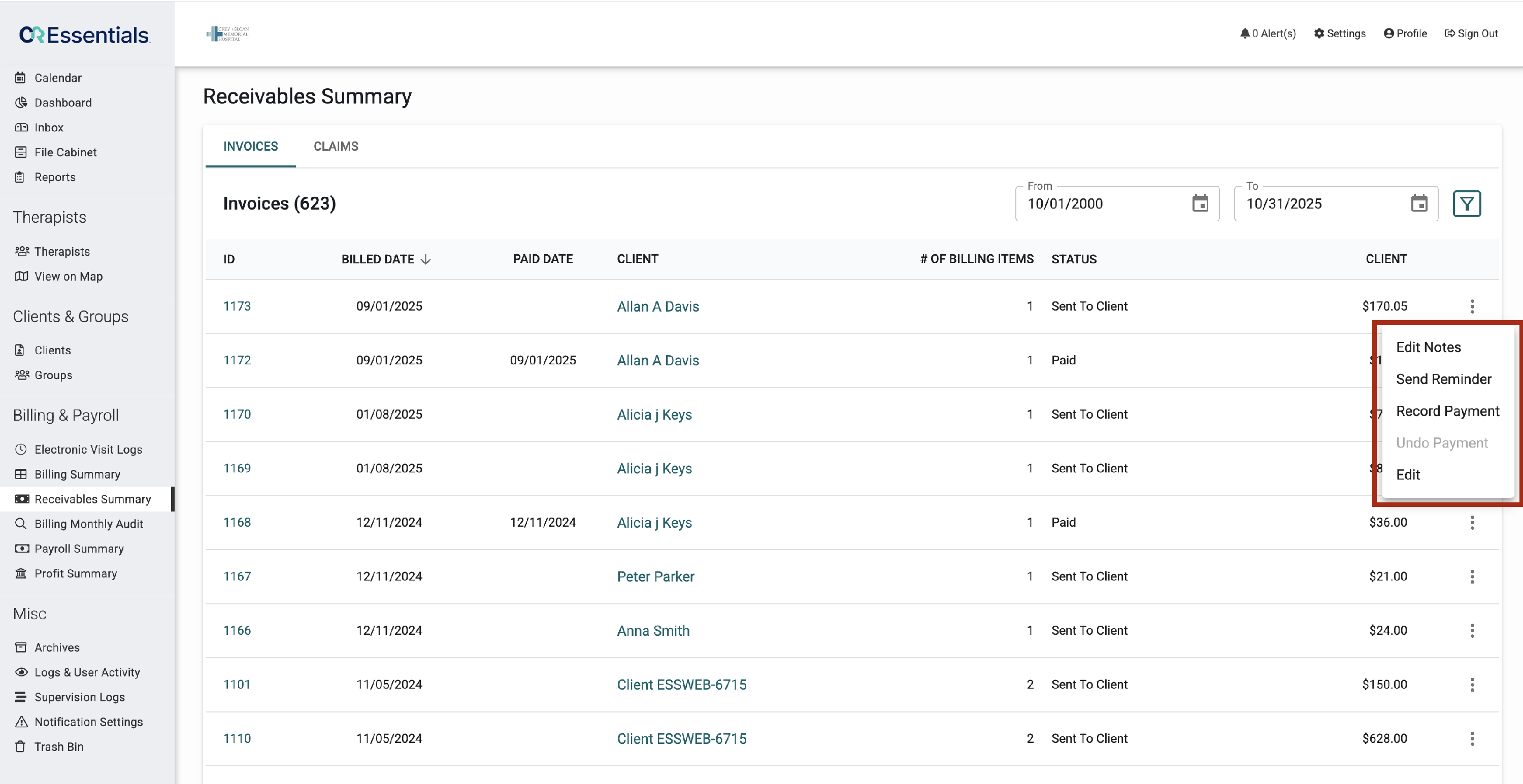
Shows client invoices generated from Billing Summary, displaying billed, paid, and outstanding amounts for each client.
Each invoice includes a three-dot (⋮) menu with options to Edit Notes, Send Reminder, Record Payment, Undo Payment, or Edit to manage client billing and payment tracking.
Default View
- When the Receivables Summary opens, the system displays records for the current month by default.
- Users can adjust the From and To date filters to view receivables for other periods.
- The table updates automatically after filters are applied.
Filters
Use the Filter icon on the right to refine results by client, claim status, or receivables; then click Filter to apply or Reset to return to the default view.
Claims
The Claims tab in Receivables Summary provides a consolidated view of all insurance claims generated from the Billing Summary → Claims section.
It helps users monitor claim statuses, record payer payments, and reconcile billed versus paid amounts for each claim.
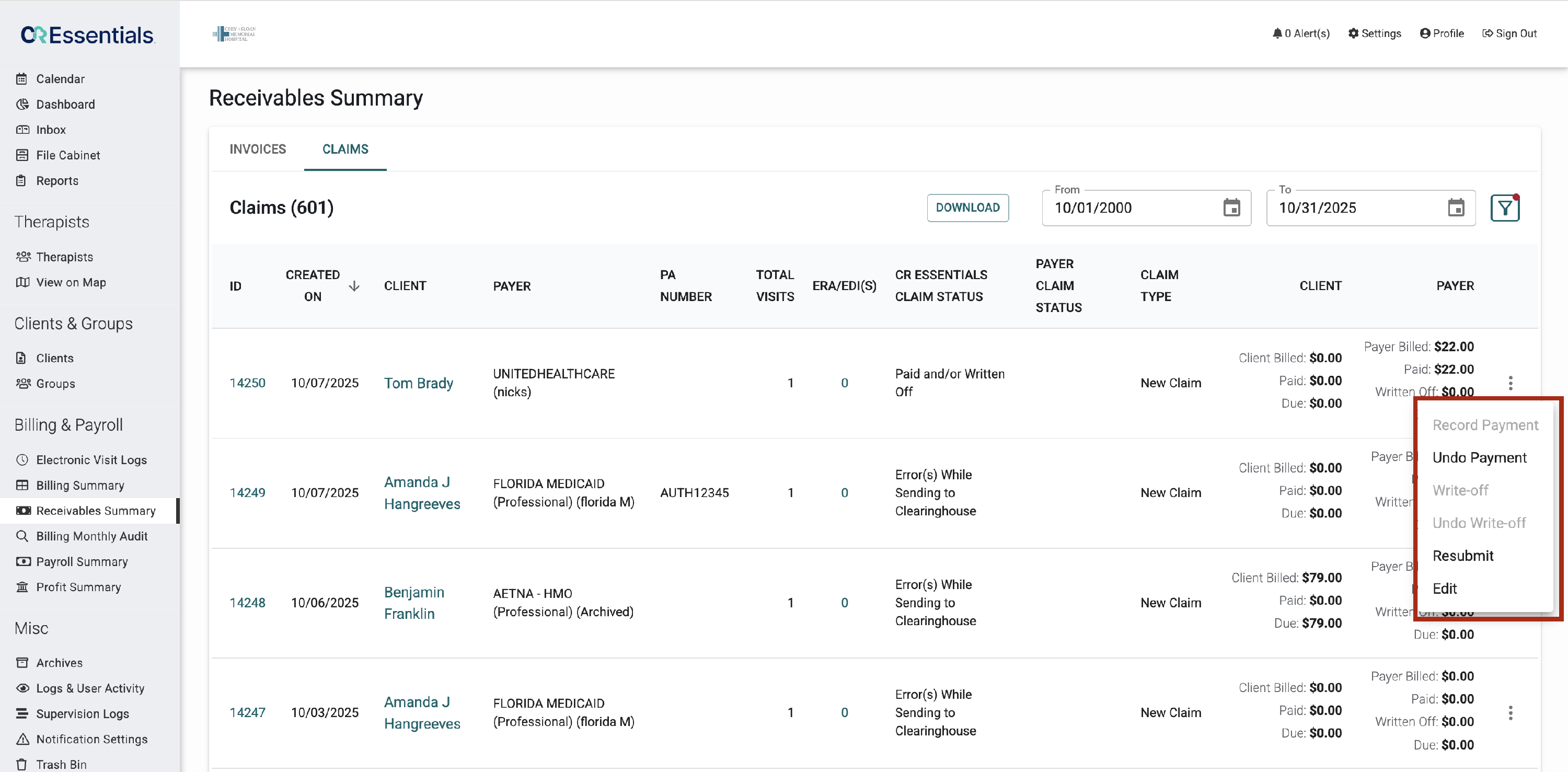
Each claim includes a three-dot menu (⋮) for managing its financial and submission status.
The available actions include:
- Record Payment – Log a payment received from the payer. Updates the Paid and Due amounts.
- Undo Payment – Reverse a previously recorded payment. Available only for Paid claims.
- Write-off – Mark an unpaid balance as written-off
- Undo Write-off – Restore a previously written-off balance.
- Resubmit – Re-send the claim to the clearinghouse after corrections.
- Edit – Update claim details such as PA number, payer, or billing codes.
- Claims that are already marked Successfully Sent to Clearinghouse can still be edited or resubmitted, but not deleted.
Default View
- When the Receivables Summary page opens, users can switch to the Claims tab to view all insurance claims for the current month.
- Claims are shown by creation date, and the list refreshes automatically when filters are applied or cleared.
- Users can also download the claim summary for reconciliation or reporting purposes.
Filters
Click the Filter icon at the top right to narrow the displayed claims.
You can filter by:
- Client Status – e.g., All, Active, Archived.
- Clients – Show claims linked to a specific client.
- Receivables – Filter by days
You can adjust the From and To date fields to set a custom date range, then click Filter to apply or Reset to return to the default monthly view.